



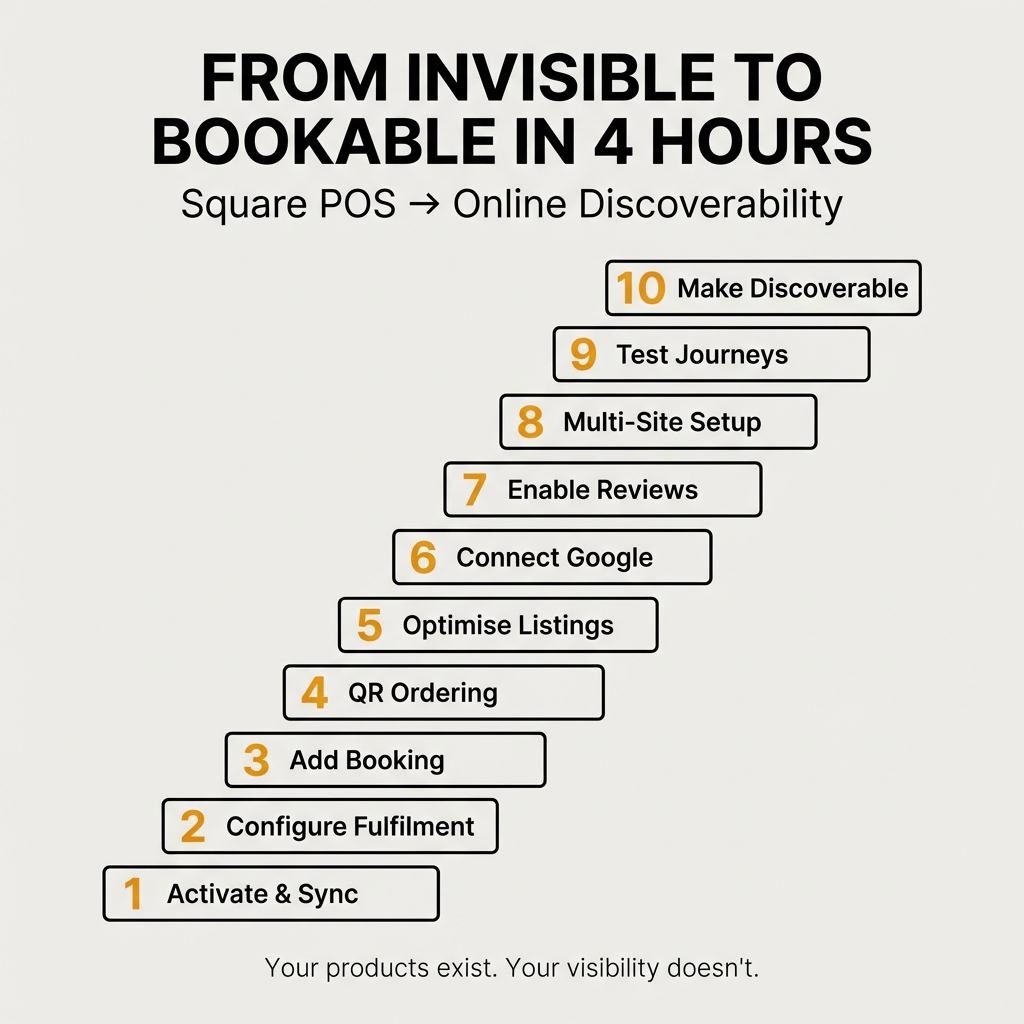
Your products are already in Square POS. Your services are listed. Your inventory exists somewhere digital.
What doesn’t exist is the infrastructure that makes any of it discoverable.
A hair salon in Mount Gambier takes phone bookings during business hours. A cafe in Wollongong has table service but no ordering system when staff are slammed. A gift shop in Townsville keeps stock records but nothing customers can browse before driving across town.
The operational knowledge exists. The algorithmic visibility doesn’t.
This is the step-by-step process to convert what’s already in your system into what people can actually find, book, order, and buy online. If you’re already using Square POS, most of this takes configuration rather than creation.
You’re not building from scratch. You’re making visible what already exists.
Why Square POS to Square Online Integration Matters for Regional Businesses
Square processes $228 billion annually across 4 million sellers. The platform dominates US point-of-sale systems because it collapses the gap between in-person transactions and online discoverability.
For a regional Australian business, that integration solves a specific problem: your competitors probably aren’t doing this yet.
In Melbourne CBD, every cafe has online ordering. Every salon has booking systems. Every retail shop has click-and-collect.
In Ballarat, Bendigo, Wagga Wagga? Most don’t.
The visibility problem is identical everywhere. The opportunity is bigger in regional areas because the competitive saturation is lower. You can implement the same infrastructure for a fraction of the cost whilst being the only operator in your area actually doing it.
When someone in Mount Gambier searches for a haircut at midnight, Google wants to show them someone they can book immediately. If your salon only takes phone bookings during business hours, you’re invisible during the 16 hours when 75% of bookings actually happen.
That’s not a technical problem. That’s a discoverability problem.
What You Need Before You Start
This process assumes three things:
1. You already use Square POS
Your products, services, or menu items exist in the system. You’ve been taking payments. The inventory is there.
2. You have basic product information
Names, prices, and categories are already entered. You don’t need professional photos to start. An old restaurant menu didn’t have photos. People usually know what things look like.
3. You can dedicate 3-4 hours to configuration
This isn’t difficult. It’s detailed. You’re working through setup steps, not learning complex technical skills.
If you’re not on Square yet, you can export your inventory from your current POS system or accounting software. Most systems let you download a CSV file. Tools like ChatGPT can translate that spreadsheet into Square’s format faster than manual entry.
But if you’re already on Square, you’re 60% of the way there before you start.
Step 1: Activate Square Online and Sync Your Inventory
Log into your Square Dashboard. Navigate to Online in the left sidebar. Click Get Started.
Square will ask you a few questions about your business type and what you want to sell. Answer them. The system generates a default mobile-friendly store immediately.
Your products from Square POS sync automatically.
This is the part most businesses don’t realise exists. You’re not building a separate website and manually re-entering everything. The inventory you’ve been using for in-person sales becomes an online catalogue the moment you activate Square Online.
Check that your products appear in the online store. Go to Items in your dashboard. Make sure each product has:
-
A clear name that matches what people search for
-
A price
-
A category assignment
-
Stock tracking enabled (if applicable)
You don’t need product photos yet. But if you have them, upload them now. Use your phone. Take a photo of the product on your desk. If it’s food, use an AI photo app to enhance presentation whilst keeping it recognisably your actual product.
Professional photos help conversion. Absence of photos doesn’t prevent discoverability. Just knowing you have something is often enough for someone to call, visit, or place an order.
Step 2: Configure Fulfilment Options (Pickup, Delivery, Shipping)
Go to Online → Fulfilment in your Square Dashboard.
This is where you tell customers how they get what they’re buying.
For retail shops: Enable click-and-collect
Turn on Pickup. Set your shop address. Define pickup hours.
In Australia, 70% of consumers now use click-and-collect when shopping online. More importantly, 78% of those customers buy additional products when they collect their original order in-store.
Click-and-collect isn’t a convenience feature. It’s a revenue multiplication mechanism. Someone locks in a product online, drives to your shop, and buys three more things whilst they’re there.
You’re not losing foot traffic. You’re guaranteeing it.
For cafes and restaurants: Enable pickup or delivery
Turn on Pickup for takeaway orders. Set preparation times so customers know when to collect.
If you offer delivery, enable Delivery and define your delivery radius. Square integrates with DoorDash for contractor delivery if you don’t want to handle it yourself.
Delivery fees, minimum order values, and estimated times all configure here.
For product-based businesses: Enable shipping
Turn on Shipping. Connect your Australia Post account or define flat-rate shipping costs.
Square calculates shipping based on weight, dimensions, and destination. You can override this with fixed pricing if your products ship at predictable costs.
Test each fulfilment option by placing a dummy order. Make sure the flow works before customers see it.
Step 3: Add Appointment Booking for Service-Based Businesses
If you run a salon, clinic, consultancy, or any business that operates on appointments, this is the infrastructure that makes you discoverable outside business hours.
Go to Appointments in your Square Dashboard. Click Get Started.
Square Appointments is free for solo operators. You get a full-featured booking system with calendar management, automated reminders, and online payment processing.
Set up your services:
-
Service name (e.g., “Women’s Cut and Colour”)
-
Duration (e.g., 90 minutes)
-
Price
-
Staff member assigned (if you have multiple team members)
Define your availability. Block out lunch breaks, days off, and buffer time between appointments.
Square generates a booking page automatically. You get a URL like squareup.com/appointments/book/yourname.
Embed that booking page on your website. Add the link to your Google Business Profile. Put it in your Instagram bio.
Now when someone in Mount Gambier searches for a hairdresser at 11pm, they find your salon and book an appointment immediately. You wake up to confirmed bookings and prepaid deposits.
That’s the difference between being findable and being invisible.
Step 4: Set Up QR Code Table Ordering for Cafes and Restaurants
If you run a cafe or restaurant, QR code ordering solves two problems: staff workload during peak times and revenue per table.
Restaurants using QR-based ordering see a 15% increase in table turnover. Customers using mobile ordering have check sizes 9% higher than standard dine-in.
The mechanism works because customers order when they’re ready rather than waiting for staff attention. They add extra items without feeling rushed. They pay immediately without waiting for the bill.
Here’s how to set it up in Square:
Go to Online → Site. Make sure your menu items are categorised properly (Mains, Sides, Drinks, Desserts).
Enable Pickup as the fulfilment method. Set preparation time to 10-15 minutes for kitchen orders.
Generate a QR code for your online ordering page. You can use Square’s built-in QR generator or any free QR code tool.
Print the QR code. Laminate it. Put one on every table.
Add instructions: “Scan to order and pay from your table.”
When a customer scans the code, they see your full menu. They select items, customise options, and pay through their phone. The order appears in your Square POS kitchen display.
You’ve just eliminated the wait-for-service bottleneck whilst increasing average order value.
Table ordering doesn’t replace staff. It removes the friction that prevents customers from ordering more.
Step 5: Optimise Product Listings for Discoverability
Your products are online. Your fulfilment options are configured. Now you need to make sure people can actually find what you’re selling.
Google doesn’t rank you based on how nice your website looks. Google ranks you based on whether you have the information someone is searching for.
Go through every product in your Square Online catalogue. For each item, add:
Specific product names
Not “Gift Set A.” Use “Lavender Soap and Candle Gift Set.”
Detailed descriptions
Describe what it is, what it’s used for, who it’s for. Include the terms people actually search for.
Categories and tags
Assign every product to a category. Add tags for filtering (e.g., “gluten-free,” “vegan,” “gift-wrapping available”).
Variants and options
If you sell the same product in multiple sizes or colours, set up variants. Don’t create separate listings.
The more specific your product information, the more search queries you match. When someone in Townsville searches for “lavender gift set near me,” Google looks for businesses that mention those exact terms.
If your product is called “Gift Set A” with no description, you’re invisible.
If your product is called “Lavender Soap and Candle Gift Set” with a description that mentions lavender, handmade, Australian-made, and gift-wrapping, you appear in search results.
That’s the difference.
Step 6: Connect Square Online to Google Merchant Centre
This is the step most regional businesses don’t know exists.
When you search Google for a product, you see shopping results at the top of the page. Those are Google Shopping Ads. They show product images, prices, and shop names before any text-based ads appear.
You can get your products into those results.
Go to Google Merchant Centre. Create an account. Verify your website.
In Square, go to Marketing → Google. Connect your Google Merchant Centre account.
Square syncs your product catalogue automatically. Every item in your online store becomes eligible for Google Shopping Ads.
Set a daily ad budget. Start with $10-20 per day. Google shows your products to people searching for what you sell. You only pay when someone clicks.
Track exactly how much you spend versus how much revenue comes in. Square’s dashboard shows ad performance alongside sales data.
For a regional business, this is the fastest way to appear above competitors who aren’t doing it. Most local operators don’t run Google Shopping Ads because they don’t know their POS system can connect to Google Merchant Centre.
You do now.
Step 7: Enable Customer Reviews and Build Social Proof
Google ranks local businesses based on three primary signals: proximity to the searcher, relevance of the content, and review quantity and quality.
You can’t change your location. You’ve handled relevance by adding detailed product information. Now you need reviews.
In Square, go to Marketing → Customer Directory. Turn on automated review requests.
After every transaction, Square sends an email asking the customer to leave a review. The request goes out 24 hours after purchase, when the experience is still fresh.
Most businesses never ask for reviews because they think it’s awkward or difficult. Automated requests eliminate that barrier.
Link your Google Business Profile to Square. Reviews left on Google appear in local search results. The more reviews you accumulate, the higher you rank.
Review accumulation functions as the primary local discoverability mechanism. It’s free. It’s measurable. Most businesses don’t implement it because they perceive it as difficult.
It’s not difficult. It’s automated.
Step 8: Create Mini-Websites for Wholesale or Multi-Location Clients (Advanced)
If you’re a wholesaler supplying retailers, or a caterer serving multiple venues, you can give each client their own branded website.
This is the infrastructure that lets your clients sell your products under their own name whilst you manage inventory centrally.
In Square Online, create a new site. Go to Online → Sites → Create Site.
Select which products you want that client to access. Set their pricing (wholesale or retail). Customise the branding to match their business.
You can use a free Square subdomain (clientname.square.site) or connect their own domain.
When their customers place orders, you receive the order. Your client gets their cut. The customer never sees your business name unless you want them to.
We’ve implemented this for a wholesaler of window dressings. Their retail clients get branded mini-sites as installable web apps. Orders flow through centrally. Inventory updates in real time.
The same model works for caterers serving schools, clubs, or corporate venues. Each location gets a menu site. Orders come to you. Everyone gets paid.
This isn’t theoretical. It’s deployed and generating revenue.
Step 9: Test Every Customer Journey Before You Launch
You’ve configured everything. Now test it.
Place a dummy order as a customer. Go through the entire process:
-
Browse products on mobile
-
Add items to cart
-
Select pickup, delivery, or shipping
-
Complete checkout
-
Receive confirmation email
Check that the order appears in your Square POS dashboard. Verify that inventory decrements correctly. Make sure fulfilment instructions are clear.
If you’ve set up appointment booking, book a test appointment. Confirm you receive the notification and calendar entry.
If you’ve created QR codes for table ordering, scan them yourself. Place an order. See what the customer sees.
Every friction point you find now is a sale you won’t lose later.
Step 10: Make It Discoverable
Your infrastructure is built. Now people need to find it.
Add your Square Online URL to:
-
Your Google Business Profile (primary website and booking link)
-
Your Facebook and Instagram profiles
-
Your email signature
-
Printed receipts and business cards
-
Any existing marketing materials
Create a Google Business Post announcing online ordering, click-and-collect, or appointment booking. Include the direct link.
Start publishing content about your products and services. Write blog posts. Answer common customer questions. Mention specific products and services by name.
Google ranks you based on whether you have the information people are searching for. The more you publish, the more search queries you match.
You’re not writing for search engines. You’re making your operational knowledge externally visible.
What This Actually Looks Like in Practice
A hair salon in Mount Gambier activates Square Appointments. They add their services, set availability, and embed the booking page on their website. Within two weeks, 40% of new bookings come through the online system. Half of those happen outside business hours.
A cafe in Wollongong prints QR codes for table ordering. Customers scan, order, and pay from their phones. Average order value increases by 12% because people add extras without feeling rushed. Staff spend less time taking orders and more time delivering food.
A gift shop in Townsville enables click-and-collect. They upload their full inventory with product photos and descriptions. Local searches start showing their products. Customers browse online, lock in purchases, and collect in-store. Three-quarters of them buy additional items when they arrive.
The infrastructure is identical across all three businesses. The implementation takes 3-4 hours. The outcomes are measurable within weeks.
Why Most Businesses Don’t Do This
It’s not because it’s expensive. Square Online’s free tier is highly functional. Square Appointments is free for solo operators. The tools exist.
It’s not because it’s technically complex. You’re configuring settings, not writing code.
The barrier is perceived difficulty. Businesses assume this requires a web developer, a marketing agency, and a significant budget.
It doesn’t.
What it requires is someone who knows the operational details of the business sitting down for a few hours and working through the setup steps.
If you don’t have time, call someone who’s done this multiple times. They’ll extract the information from your head, configure the systems, and hand you a functioning infrastructure.
But the complexity isn’t real. The opportunity is.
What Happens When You Don’t Do This
Your competitor in the next suburb implements online ordering. When someone searches for what you both sell, they appear in results. You don’t.
Your competitor adds appointment booking. Customers book with them at midnight whilst your phone sits silent until 9am.
Your competitor enables click-and-collect. Customers browse their inventory online, confirm stock availability, and drive to their shop instead of yours.
You’re operationally capable. You’re algorithmically invisible.
That’s the gap this infrastructure closes.
Next Steps
If you’re already using Square POS, log into your dashboard and activate Square Online. Sync your inventory. Configure one fulfilment option. Test it.
If you run a service business, set up Square Appointments. Add your services. Define your availability. Share the booking link.
If you run a cafe or restaurant, create QR codes for table ordering. Print them. Put them on tables. Watch what happens.
If you need help extracting the operational details from your head and converting them into discoverable infrastructure, get in touch. We’ve done this for catering businesses in Hong Kong, retail shops in regional Victoria, and service providers across Australia.
The process is repeatable. The outcomes are measurable. The opportunity is sitting in your existing POS system waiting to be made visible.
You’ve got the products. You’ve got the services. You’ve got the operational knowledge.
Now make it findable.
